Pages

Thursday, 3 May 2012

SCCM Collections not updating - eggtimer displays

I've had a problem with the old girl recently - our SCCM 2007 environment had been chugging along nicely until a few weeks ago.

We have approx. 500 collections with update schedules running pretty evenly throughout the day.  As I'm sure you will agree the annoyance of the the old Update Collection Membership and then refresh the console is a blight on our day - but when that little red eggtimer WILL NOT DISAPPEAR it sends my SCCM OCD twitching and I just cannot carry on with my day until I've sorted it...


I've done a fair bit of Googling and not really found that many comprehensive solutions to this other than those that point to the Microsoft KB982400.  I was checking the Colleval.log and kept seeing Checking collection: 0x18, EvaluationCRCChanged=FALSE, ScheduleCRCChanged=FALSE, AwaitingRefresh=TRUE - which is fine, yes it's awaiting a refresh - SO REFRESH ALREADY!!!!

The D:\PROGRAM FILES\MICROSOFT CONFIGURATION MANAGER\inboxes\COLLEVAL.box seemed fine and the BADRELP and RETRY folders were empty - so what was causing this???

Finally I spotted a few references to AV related issues (which I suspected were responsible for another issue I have with slow PXE boots).  Sure enough, when I killed off all the Trend related services from Windows Task Manager and did another update and refresh of the collection - IT WORKED!!

Trend Services Running on the SCCM Server


I've since added an exception to Trend File scanning for the PROGRAM FILES\MICROSOFT CONFIGURATION MANAGER\inboxes folder and I've noticed a considerable improvement - I'll post back after a week or so to let you know how it's going.

Hope this helps someone else...

DocN

***UPDATE***

It seems the actual problem here was down to the sheer volume of collections running updates.  There was a cumulative effect of the schedules and come 1pm the collection action list was backed up with about 3 hours of updates pending.

I've gone through and removed all update schedules from our collections (yes - it was a lengthy monotonous task) and all is well.




Thursday, 8 March 2012

Error 1723: Can not uninstall JRE update X from Windows 7

I came across this today whilst helping one of our install techs update Java for a customer on a machine he was installing.

It was Windows 7 Ent 64bit SP1 with Java v19 installed.  Upon attempting to uninstall he received the error:

Error 1723: Can not uninstall JRE update from Windows 7.

After a bit of digging around I discovered the error was referring to a missing DLL.

By going into the registry and finding the MSI entry I tried an uninstall using the following command:

msiexec.exe /x{26A24AE4-039D-4CA4-87B4-2F83216019FF}

This was found here: HKEY_LOCAL_MACHINE\SOFTWARE\Microsoft\Windows\CurrentVersion\Uninstall   -  this is a great tip for any app packagers needing to discover the msi registered to a piece of software for uninstalls etc...

Again I received the same error message.  To enable error logging I added /L javauninst.log and discovered it was missing the "regutils.dll" located here: C:\Program Files (x86)\Java\jre6\bin

I copied the file across from an existing machine and voilà - it worked !

Another Java/MSI quirk but non the less slightly perplexing to say the least. 

Hope this helps someone else sometime...

C

Thursday, 2 February 2012

This task sequence cannot be run because a package referenced by the task sequence could not be found.

If like me you have been bashing your head against many firewalls during Windows 7 OSD via SCCM you will probably sometime come across the error:

This task sequence cannot be run because a package referenced by the task sequence could not be found.

More annoyingly it doesn't reference the guilty package in the onscreen error.  After checking the many log files CCM generates I found within the RAM drive path: x:\windows\temp\SMSTSLog resides the relevent SMSTS.LOG file.

The full error I recieved was after selecting the relevant OSD TS; resolving polices and then BAM :

This task sequence cannot be run because a package referenced by the task sequence could not be found. For more information, please contact your system administrator or helpdesk operator.

I also noticed (and please use SMS Trace to view error logs):

Failed to find CCM_SoftwareDistribution object for AdvertID="xxx", PackageID="xxx", ProgramID="*"

I found it was a Lenovo Graphics Driver Package causing the issue; it appears SCCM has yet another little "quirk" where the hash isn't written sometimes upon creation of a package and the initial ditribution.  If the version number of the guilty package is "1" try right clicking on the DP of the package and select "Update Distribution Points".

After some time the Source Version will increment to "2" and the date will be current - give your OSD another try and then see if it works - if it fails - check the log file again as this time the guilty package may have changed and it may be a case of trawling through a few before you resolve the issue.

I hope this helps.

Many thanks to J over at ManagedUX for the pointer!


Thursday, 27 October 2011

Today's project

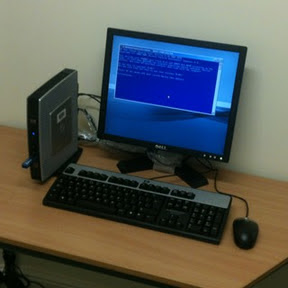
Setting up Thin Clients at one of our customers drop in centres....

Not the most glam of jobs but gets me out of my cage for a while...


- Posted using BlogPress from my iPhone

Friday, 14 October 2011

Lenovo Driver Installs via OS Deployment

Any tech unfortunate enough to have to visit Lenovo's driver page will agree it isn't the friendliest of places.  Kind of like my home town of Preston at about 2am on a Sunday morning; you only go there if you have to and get the hell out of there as quick as you can - and DON'T make eye contact with anyone!

The naming convention in non existent - unlike their competition such as Dell and HP who have meaningful, descriptive file names for their drivers and respective folders.

If you require a solution to deploy Lenovo drivers throughout your estate then don't despair - there is an answer.

In addition to the handy [yeah, don't do us any favors Lenovo] TVT System Updater tool they provide for individual clients they also developed the "Update Retriever" & "ThinInstaller" as part of their Think Vantage Toolkit (TVT) branded client tool solution.

To configure SCCM to deliver driver updates (it's also capable of MS updates but that's another story) there are a couple of solutions out there but this is the one I settled with:

Assumptions :
  • You have a deployment solution in place already with relevant TaskSequence - if not please see the wonderful WindowsNoob tutorials- big shout out to Niall Brady for this site - it's an invaluable resource to any SCCM tech.
  • You are proficient with SCCM
  • You know the machine type of the Lenovo machine you are using

  • Download the above software and install Update Retriever [UR] locally on your machine or the SCCM server.  Set it up and create a folder to act as the repository for the update and driver files and share it out - mines called "Update Retiever".  Tell UR to download to this folder (follow Lenovo's instructions if your struggling but it's straight forward)
  • Create a package in SCCM for ThinInstaller (TI) from the files that are extracted from the crappy compressed .exe you end up with and within the package create a program as below:
  1. Create a batch file and call it something meaningful like "copyfiles.bat"
  2. Within the batch file use the command: xcopy.exe \\SCCMSERVER\DISTRIBUTIONPOINT\PACKAGENAME\*.* c:\lenovo\thininstaller\ /E /D where SCCMSERVER = your servername/IP of server DISTRIBUTIONPOINT = the folder used for your DP packages (i.e. SMSPKGD$) and PACKAGENAME = the name of the package (i.e. LCT000B8).  This will copy the ThinInstaller software locally to the client as it needs to run from a local folder and doesn't extract and "install" as such.
  3. Create an "Install Software" task sequence entry under "State Restore" that calls the batch file "copyfiles.bat"
  • Create a "Run Command Line" task sequence and call it something like "Run ThinInstaller"
  • Use cmd line: cmd.exe /c thininstaller.exe /CM -search A -action INSTALL -repository \\SCCMSERVER\Update_Retriever  -noicon -includerebootpackages 1,2,3,4 -noreboot *don't forget to change this path to suit your config.
  • Start in: c:\lenovo\thininstaller -this is where the files were copied to.
  • Time-out - 120
This should now enable the client to run ThinInstaller locally and pull over all the relevant drivers for that model.

Wednesday, 12 October 2011

Training Ahoy!

Finally it looks like I will be undergoing some SCCM training.  My employer have agreed to send me on Microsoft's M6451 "Planning, Deploying and Managing Microsoft System Center Configuration Manager 2007" at QA in Manchester.

This is what I have wanted to do for a while now - hopefully I can do the 70-401 exam soon enough and get my MSTS!